How to Turn a Script into a Video with AI

To turn a script into a video with AI, you paste your script into a tool that breaks it into a shot-by-shot storyboard, generate an image for each shot, animate those images into clips, then add voice and sound and cut it together on a timeline. The work that used to need a crew and weeks now happens in one workspace in an afternoon. Below is the full workflow, and where AI actually helps versus where you still have to make the calls.
This stopped being a niche experiment somewhere in the last two years. The share of brands using AI for video production more than doubled in a single year, from 18% in 2024 to 41% in 2025, in a survey of roughly 1,300 video professionals (Wistia 2025 State of Video, Mar 2025). The point of this guide is to show you what those teams are actually doing, in an order that produces something watchable rather than a pile of disconnected clips.
Start with a script, or just an idea
You do not need a finished screenplay. You can paste a full script, an ad brief, or a few sentences describing what you want, and expand from there. A good tool reads the way you already write: screenplay format, plain prose, inline Name: dialogue, and narration cues all parse. The clearer the script, the sharper the breakdown, but a single paragraph is enough to start. In Fawna today, script input is paste (PDF and image upload are coming), so the first move is getting your words into the box.
One decision shapes everything downstream: are you writing the words a narrator will speak, or describing what the camera should see? Both are valid, and a strong script often does both, but the content type you picked decides which one the analyzer leans on. If you have not written the script yet, our guide on how to write a video script covers the hook, the structure, and pacing at roughly 150 words per spoken minute.
Break the script into a storyboard
This is the step that separates real script-to-video from a slideshow generator. The analyzer reads your text, splits it into scenes and shots, writes a visual direction and a camera move for each shot, and renders every frame as a still. You end up with a shot-by-shot board instead of a blank timeline, which means you can see the whole video as a comic strip before you spend a credit on motion.
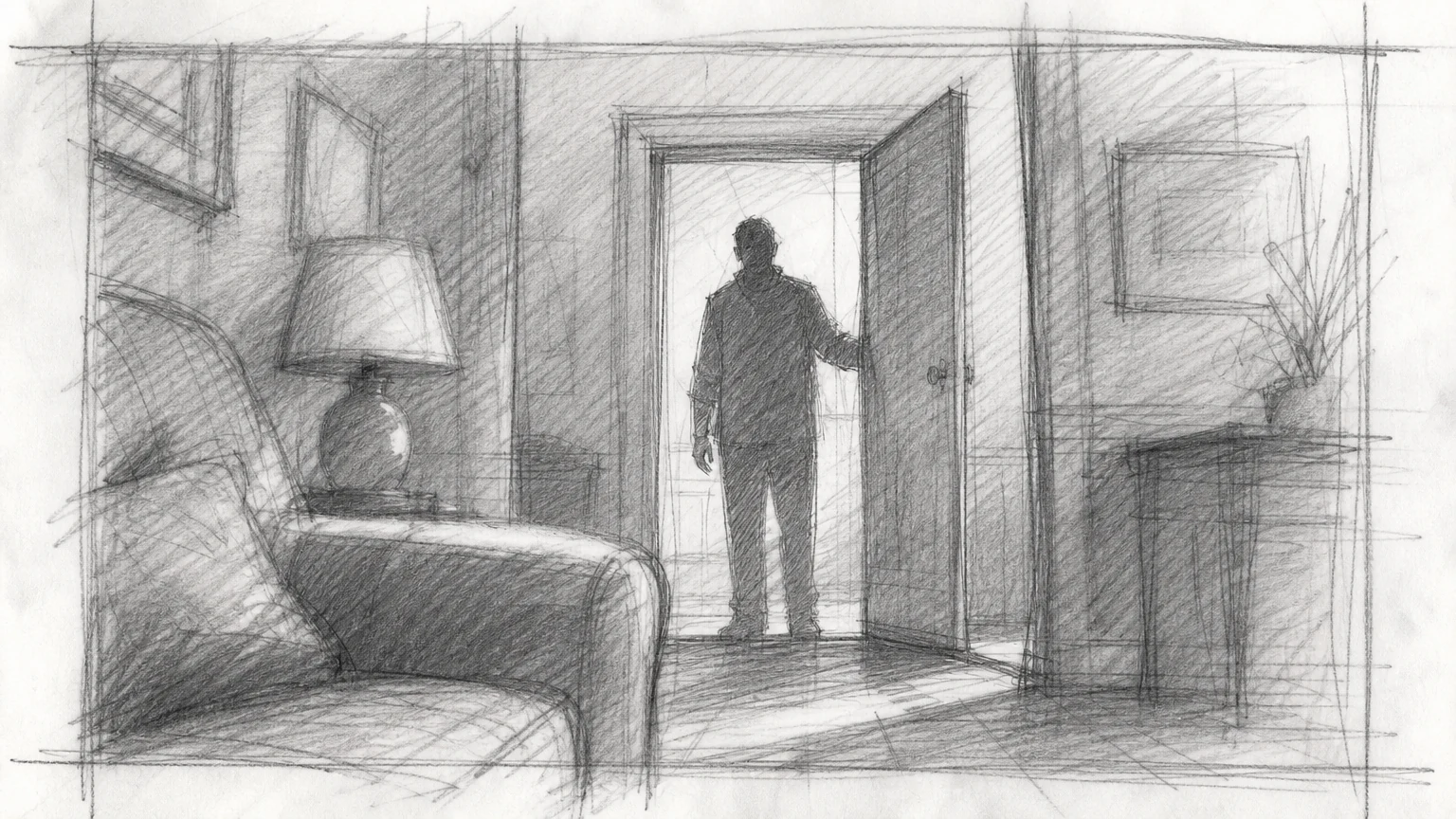
Treat the board as a draft, not a verdict. Reorder shots, split a scene that is trying to do too much, merge two that say the same thing, or rewrite a beat that did not land. Fixing structure here costs nothing; fixing it after you have generated forty clips costs forty regenerations. This is also where the difference between a storyboard and the script becomes obvious, and if that distinction is fuzzy, what an AI storyboard is walks through it. The AI storyboard maker is the part of the workflow you will spend the most time in, and that is by design.
Cast your characters and lock your style
Consistency is the thing that breaks first in AI video and the thing most worth setting up early. Define your characters, locations, and an art style once. Each character gets a locked description and a reference portrait that is reused on every frame, so the same person looks like the same person from the first shot to the last. Lock a location so a kitchen stays the same kitchen across three scenes, and lock a style so the whole project shares one look instead of drifting frame to frame.
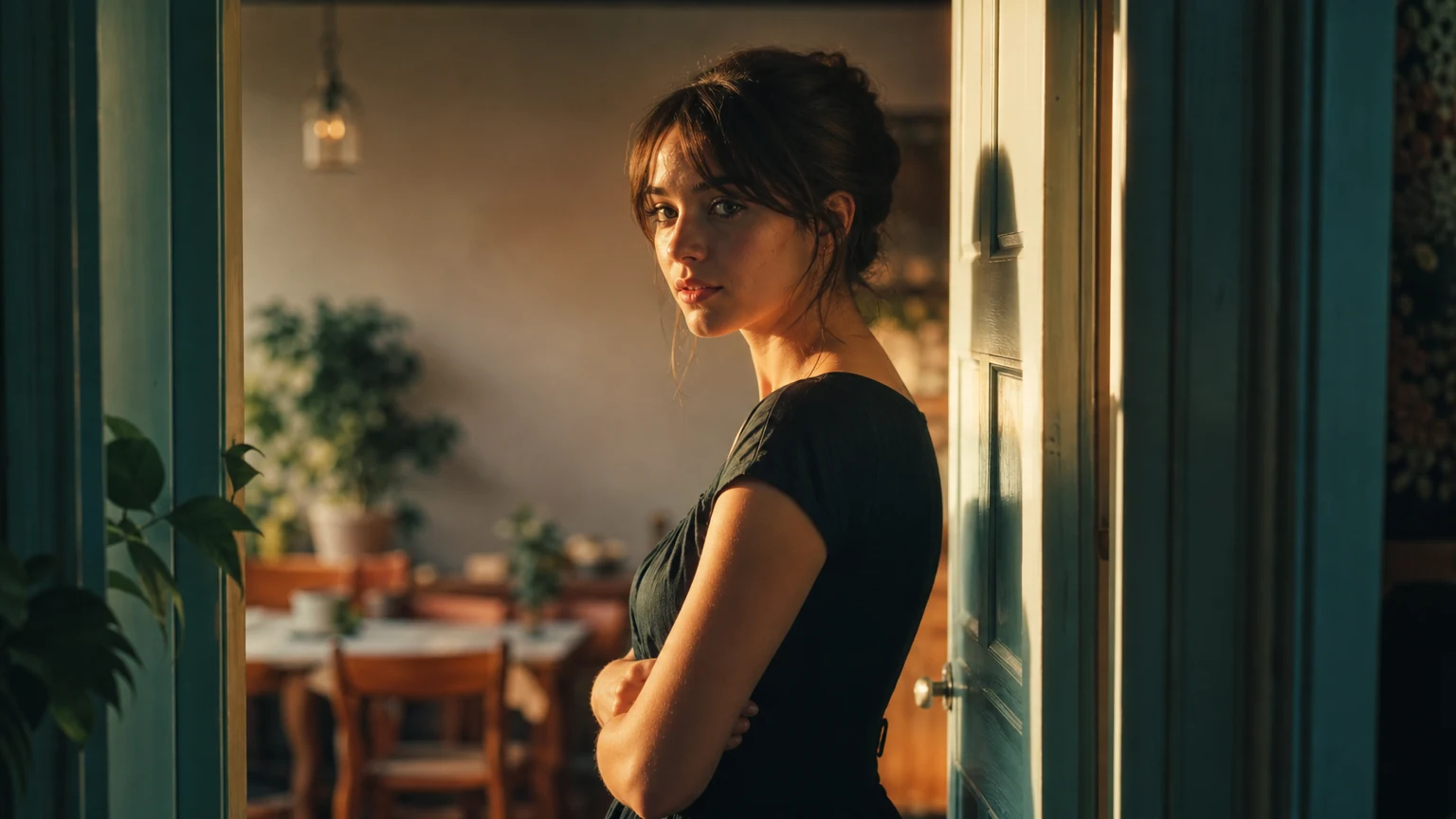
Get this right and the rest of the pipeline inherits it. The cast, the rooms, and the look feed into image generation and then into motion, so a character you locked in shot one is still recognizable in shot forty. Skip it and you get the classic AI-video tell: a protagonist whose face, hair, and outfit quietly change every cut.
Generate the shots, then the motion
With the board approved, generate the still image for every shot, review them, regenerate the few that miss, then animate. Stills first is deliberate: an image is cheap and fast to judge, and fixing a composition as a still is far cheaper than discovering the problem only after it is a moving clip. Once the frames are right, you bring them to life one shot at a time.
Different shots want different models, and matching them is where output quality is won or lost. For a line of spoken dialogue, a model with native synced audio like Veo earns its keep because the mouth and the sound are generated together. For a deliberate push-in, pan, or crane move, a camera-control model like Kling gives you the move you actually asked for. For fast throwaway drafts you just want to see in motion, a quick image-to-video model does the job. Because the cast and style are already locked, the motion stays on model regardless of which generator you reach for. If you want the deeper breakdown, the AI video generator page lists what each model is good at.
Add voice and sound
Now the picture gets a soundtrack. Cast a voice per character from hundreds of options across 15+ languages, and let the timing line up to your board so narration sits where it should. You can give each character a distinct voice and keep it consistent across every scene, the audio equivalent of locking a face. Then layer sound effects and music from a built-in royalty-free library so the whole soundtrack lives in the same workspace as the visuals.
Audio is not an afterthought; it is often what makes an AI video feel finished rather than generated. Captions are the most-adopted AI video feature of all, used or planned by more than 60% of teams already producing AI video (MarTech, citing Wistia, 2025), and voice dubbing follows at 38%. The AI voiceover tool handles the narration side with word-level timing, so the voice tracks the cut instead of fighting it.
Finish on the timeline
Carry the board straight into a real multi-track editor instead of exporting clips and reassembling them somewhere else. Stack video tracks, layer narration over music, add transitions and Ken Burns motion, trim the timing, and set your aspect ratio per project. Nothing leaves the workspace between steps, which removes the export-and-re-upload tax that kills most multi-tool pipelines. The video editor and the sound and asset libraries are free to use; generation is what costs credits.

One honest note on the finish line. Today you export your work, your scenes, shots, clips, and audio, to take into any editor or to publish. A single one-click finished-video render is on the roadmap, not shipped, so plan to do the final assembly on the timeline rather than expecting one button to spit out a polished MP4.
The old production way versus the AI way
The shift is not that AI makes a better video than a film crew. It is that AI collapses the parts of production that used to gate everything: scheduling, shooting, and the first rough assembly. The creative decisions, the script, the structure, the direction of each shot, still belong to you, and arguably matter more now that they are no longer buried under logistics. The adoption numbers track that shift.
Crew, camera, calendar
Cast and location scout, schedule a shoot, film, then hand footage to an editor. Every change after the shoot means a reshoot or a workaround. Cost and timeline scale with ambition.
Script, board, generate, cut
Paste a script, get a storyboard, generate and animate shots, voice and score it, cut on a timeline. Changing a scene means regenerating a shot, not rebooking a day. Iteration is the cheap part.
In dollar terms, that growth rate runs against a market that sat near $0.6 to $0.8 billion in 2024 to 2025 and is projected to reach roughly $2 to $3.4 billion by the early 2030s, a range that five independent research firms agree on within a couple of points. Read it as a category moving from experiment to standard tooling, not as a promise that any given video will be good. The model still does what your direction tells it to.
Where this leaves you
The hard part of video used to be production. AI moves the bottleneck back to the writing and the direction, which is the part worth your attention anyway. Start from a clear script, pick the content type that matches it, lock your cast and style before you generate, and let one workspace carry the project from board to a finished cut you can export. If you can describe a scene, you can make the video; the craft is now in describing it well.
Frequently asked questions
How do I turn a script into a video with AI?
Paste your script into a tool that breaks it into a scene-by-scene storyboard, generate a still image for each shot, animate the stills into clips, cast voices, add sound, and assemble it on a timeline. Picking a content type first, like documentary or commercial, tells the AI how to read your script into shots.
Can I use my own script, or does the AI write one?
Both work. You can paste a finished script, an ad brief, or just a few sentences and expand from there. A clearer script produces a sharper shot breakdown, but you do not need a polished screenplay to start. The tool reads screenplay format, plain prose, and inline dialogue cues alike.
Should I generate the voiceover or the video first?
Generate the visuals first, then voice and sound. The storyboard and shots define your pacing, and word-level voice timing can then sync to that cut. Generating audio first locks you into a rhythm before you know how long each shot runs, which usually means redoing one or the other.
How long does it take to make a video from a script with AI?
A short clip under a minute can come together in minutes; a full multi-scene project takes longer because you review the board, regenerate weak shots, and finish on the timeline. Vendor case studies report 50% to 90% time savings in specific deployments, though those carry vendor bias and your mileage varies.
Are AI-generated videos copyright-free, and can I use them commercially?
It depends on human input. U.S. Copyright Office guidance holds that fully AI-generated video with no human creative authorship is not copyrightable, while AI-assisted work with meaningful human direction can be protected (Built In, 2024 to 2026). The editing and direction you contribute are what give you a claim.
What is the difference between text-to-video and script-to-video?
Text-to-video turns a single prompt into one clip with no structure. Script-to-video reads a full script, splits it into scenes and shots, keeps characters and style consistent across them, and assembles a multi-shot piece. Script-to-video is what you want for anything longer than a few seconds with a story or message.